
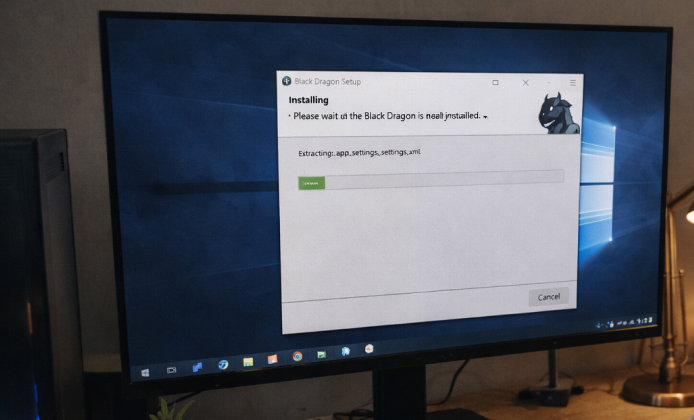
Before you begin, it helps to decide what you want most from the viewer: maximum visuals, reliable performance, or a balanced daily-driver configuration. For many newcomers, a clean Black Dragon Viewer install usually starts with checking your system requirements and cleaning up older viewer folders first.
What You’ll Need Before Installing
- Admin access: You may need permission to install software and write to program folders.
- Stable internet: Large installers and future updates download faster on a steady connection.
- Updated graphics drivers: Fresh drivers reduce crashes and improve rendering quality.
- Disk space: Leave room for cache, screenshots, logs, and future updates.
If you’ve used other viewers before, clearing old cache folders can prevent strange “it worked yesterday” issues after switching.
Step 1: Get the Right Installer
To avoid corrupted files, the safest approach is to download and install Black Dragon Viewer from the official source and complete the setup in one sitting.
- Download the installer that matches your operating system.
- Verify the file finishes downloading completely before you run it.
- Close other viewers and heavy apps to keep installation smooth.
Step 2: Install on Windows
On Windows, the simplest path is to run the setup wizard and let it place files in the default location unless you have a specific reason to customize folders. Most people can install Black Dragon Viewer by double-clicking the installer, approving the prompt, and keeping the recommended options selected.
- Choose a standard install path (default is usually best).
- Create a desktop shortcut if you like quick access.
- Launch the viewer once installation completes to confirm it starts properly.
Step 3: First Launch Checklist
On first start, you’ll typically pick a grid, sign in, and set a few basics that affect performance and comfort.
| Setting | Recommended First Choice | Why It Helps |
|---|---|---|
| Graphics preset | Mid / High | Gives quality without overloading your GPU on day one |
| Draw distance | 128–192m | Improves FPS in busy regions while still looking good |
| Avatar complexity limits | Enabled | Reduces stutter when many avatars are nearby |
| Cache size | 4–10 GB | Speeds up revisits to familiar places and inventory previews |
Step 4: Confirm You’re Set Up for Second Life
Once you can log in and move around comfortably, Black Dragon for Second Life becomes much easier to tune because you can change settings while seeing immediate results.
It Won’t Launch or Close Immediately
- Reboot your PC and try again to clear locked files.
- Update GPU drivers, then retry launch.
- Temporarily disable overlays (FPS counters, screen recorders) to test stability.
Very Low FPS or Heavy Stutter
- Lower draw distance first; it’s often the biggest win.
- Reduce shadows and ambient occlusion if your GPU is mid-range.
- Limit nearby avatar rendering in crowded areas.
Textures Stay Blurry for Too Long
- Increase cache size and keep it on a fast drive.
- Give texture loading a minute in busy hubs; initial load can be heavy.
- Restart the viewer after major setting changes to confirm they “stick.”
Clean Reinstall Tips
If you’re troubleshooting a stubborn problem, a clean reinstall often works best when you remove leftover folders and start fresh with default settings first. When problems persist, a careful Black Dragon install paired with a new cache folder can eliminate conflicting files from older viewer versions.
Safety and Best Practices
- Install only from trusted sources to avoid modified installers.
- Keep backups of personal settings if you spend time customizing UI layouts.
- Review permission prompts during setup, and avoid unnecessary add-ons.
If you want the quickest “start playing” approach, you can install Black Dragon app with default settings, then fine-tune graphics once you’ve confirmed stable logins.
A Simple Post-Install Routine
- Log in to a quiet region first to test movement and camera controls.
- Set a comfortable graphics preset and verify FPS is stable.
- Visit one busy place to stress-test performance, then adjust accordingly.
- Save your final settings once everything feels right.
For a final quick check, keep an eye on shortcuts and version info so your second Black Dragon Viewer install reference matches the build you actually run day to day.
 Black Dragon Viewer Install Guide: Best Visuals and Smooth Performance
 Black Dragon App: Quick Actions, Full Control & Zero Hassle
 Black Dragon Viewer Version Guide: Choose the Fastest & Most Reliable Build
 Black Dragon Desktop Guide: Quick Install, Better Multitasking & Zero Lag Tips
 Black Dragon App Experience
 5 Best Apps Similar to Black Dragon
